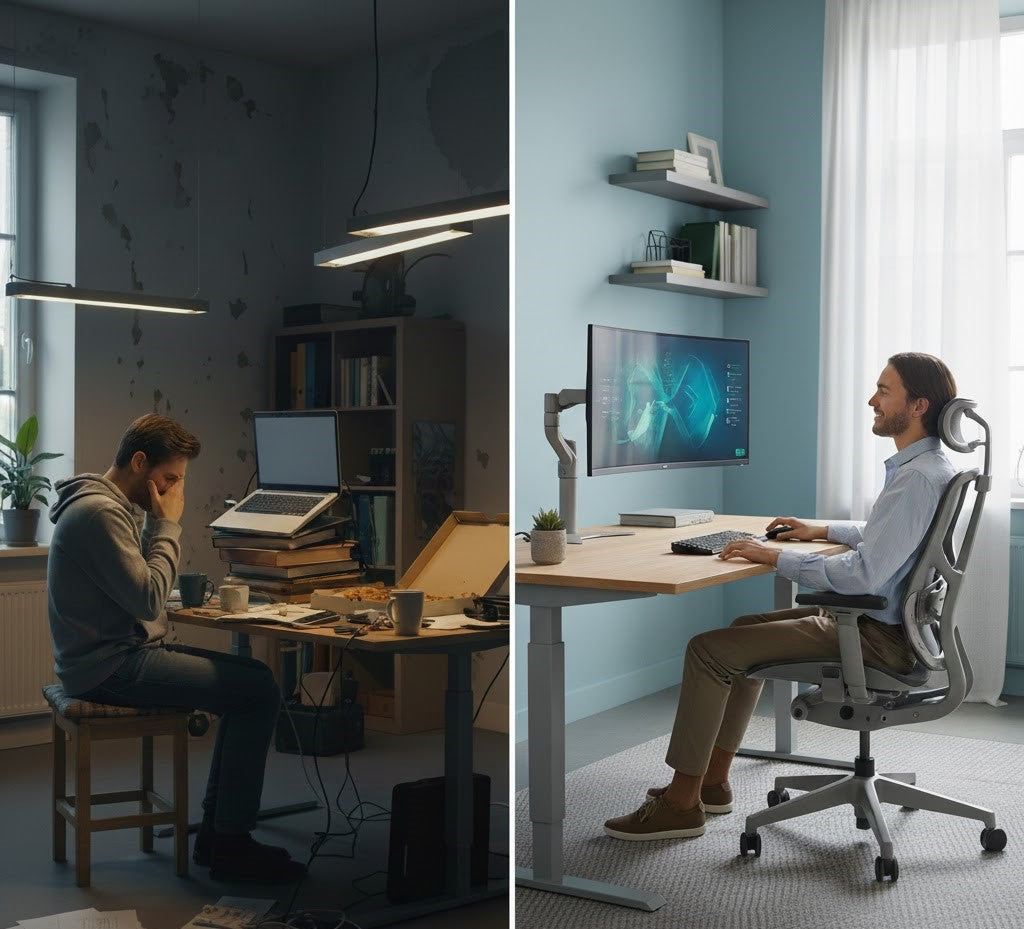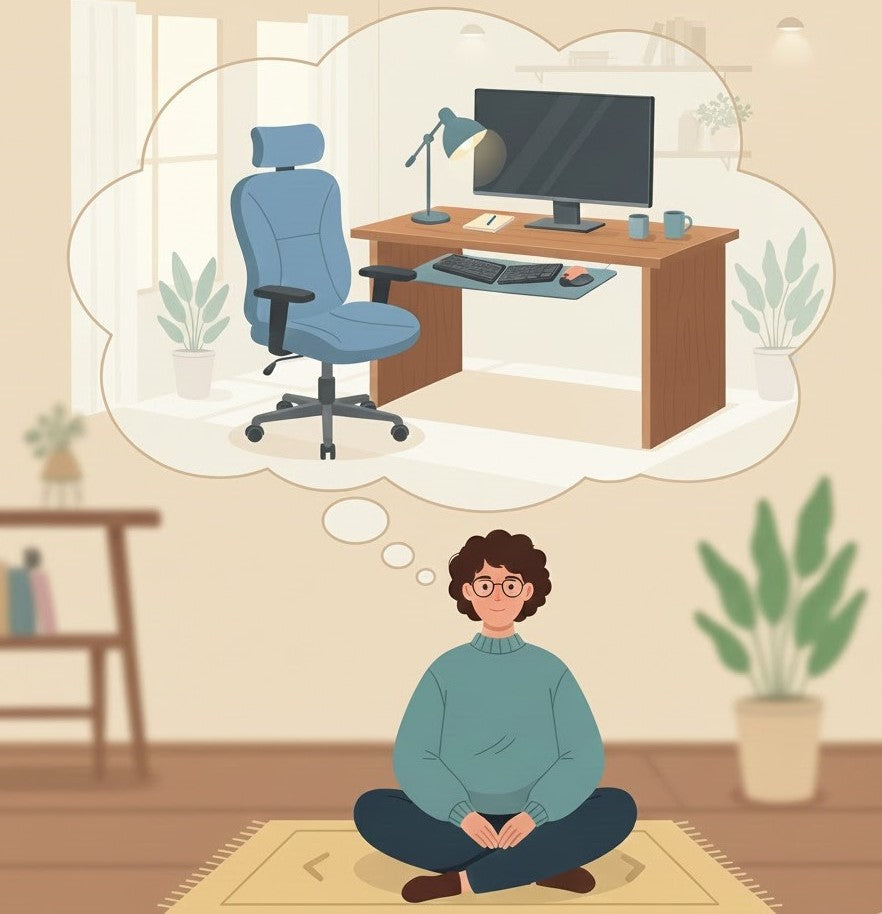
The Ideal Home Office Ergonomic Setup for Productivity and Comfort
The way you structure your home workspace has a direct and measurable impact on your daily performance, comfort, and long-term health. Whether you work remotely full-time, divide your week between home and the office, or operate your own business from a dedicated room or corner of your home, the environment you sit in shapes how effectively you think, how comfortably you move, and how consistently you can sustain your focus.
A well-designed home office extends far beyond aesthetics. While a visually appealing space can certainly enhance motivation, the foundation of an effective workstation lies in ergonomics—how your body is supported and how your tools are arranged. A truly optimized setup prioritizes:
-
Reducing physical strain and preventing the development of pain over time
-
Improving focus, cognitive clarity, and overall energy levels throughout the day
-
Creating a workspace that supports long-term well-being rather than undermining it
Health administration agencies, including OSHA, NIOSH, and the APTA, recommend following established health and safety standards for ergonomic home office setups to promote workplace health and prevent injury.
When your environment reinforces rather than competes with your body’s natural alignment, productivity becomes easier and more sustainable. Instead of battling discomfort or fatigue, you can direct your attention to the work that matters.
This guide provides a structured, step-by-step approach to building an ergonomic home office. It is designed to meet the needs of real professionals with real working habits—helping you create a space that enhances comfort, elevates performance, and supports healthier work for years to come.

Build a Workspace That Enhances Focus and Efficiency
A significant portion of daily productivity is shaped not by motivation or discipline, but by the environment in which you work. If you find your energy dipping by mid-morning or notice your concentration slipping throughout the day, the structure of your workspace may be contributing more than you realize. Having a dedicated work area that is quiet, well-lit, and organized is essential to minimize distractions and enhance focus. Ergonomics play a central role in cognitive performance: when your body is misaligned, your mind works harder to compensate, leading to preventable fatigue. Conversely, a workspace designed for comfort and alignment naturally supports sustained focus and higher-quality work.
Key Elements for Productivity
Maintain eye-level screens for optimal alignment
Screens positioned too low pull the head forward, strain the neck, and diminish mental clarity. Elevating your laptop or monitor ensures your gaze stays aligned and reduces unnecessary tension.Make sure your monitor is set at the proper height for your body type to maintain ergonomic comfort.
The Serenform Elevate Laptop Stand provides stable, ergonomic height adjustment designed to bring the screen exactly where it needs to be—directly in line with your natural eye level.
Create a clean, minimal desk layout
Clutter competes for your attention. A streamlined workspace reduces visual overstimulation, helping the brain prioritize tasks more effectively. A minimal environment fosters mental clarity and encourages deeper focus.
Support your posture to sustain energy over time
A balanced, upright sitting posture promotes better breathing, increased oxygen flow, and more consistent cognitive performance. Proper pelvic positioning, lumbar support, and neutral wrist alignment all contribute to reduced fatigue during long work periods.
Position keyboard and mouse consistently
Your elbows should rest at approximately a 90-degree angle, with your arms close to your body. For optimal ergonomic comfort, your desk or worksurface should be set at elbow height. When typing, keep your forearms and wrists parallel to the floor to minimize strain. Keep your mouse closer to your body to reduce reach and shoulder strain, supporting a relaxed, efficient working rhythm.
Professional Insight:
Visual noise often becomes mental noise. A productive workspace is intentional, calm, and aligned with the demands of your workflow. When your environment supports your body, your mind is free to perform at its highest level.

Create a Pain-Free Home Office With Proper Ergonomics
Back pain, neck tension, and hip discomfort are among the most frequent challenges faced by remote professionals—and in most cases, these issues are not the result of long hours alone, but of misaligned workstations. Choosing a comfortable chair with a supportive chair's backrest is essential to help you sit comfortably for long periods, as it provides proper lumbar support and promotes better posture. When your body is supported correctly, prolonged sitting becomes significantly more comfortable and far less damaging. Establishing an ergonomic setup for pain relief is one of the simplest and most effective ways to protect your long-term health.
Essential Pain-Relief Adjustments
Chair Height:
Your hips should sit slightly above knee level. Adjust your chair so you sit high enough to maintain proper ergonomic posture, ensuring your hips are slightly above your knees. This small adjustment encourages a forward-tilted pelvis, helps engage the core, and reduces strain on the lower back. A chair that is too low forces the spine into a rounded shape, increasing compression over time.
Lumbar Support:
Your spine has a natural “S-curve,” and maintaining this shape is essential for posture support. Adequate lumbar reinforcement prevents slouching, supports spinal alignment, and minimizes lower-back fatigue.
Seat Cushion Support:
A high-quality ergonomic cushion can significantly improve pelvic positioning. The Serenform Summit Seat Cushion is specifically engineered to contour to the body, elevate the hips, relieve tailbone pressure, and promote neutral alignment during extended sitting periods. This single upgrade can transform discomfort into proper posture.
Screen Placement:
Your screen should be positioned directly in front of you, at eye level. When the monitor is too low or off to the side, the neck compensates, leading to persistent tension, headaches, and upper-back strain.
Foot Positioning:
Feet should remain flat and fully supported. When your legs dangle or your feet stretch forward, the pelvis tilts backward, pulling the spine out of alignment. Proper grounding relieves pressure on the lower back and stabilizes your sitting posture.
Why Pain Happens
Poor ergonomics place the body in compromised positions that it was never designed to hold for long periods. A misaligned setup compresses the spine, rotates the pelvis, and strains the neck and shoulders. Over time, these small imbalances accumulate into chronic discomfort.
Correcting your workstation corrects the root cause. When your environment supports your natural posture, your muscles work less, your joints bear less stress, and your body returns to a more comfortable, efficient state.

Affordable Ergonomic Upgrades With Maximum Impact
Creating a healthier, more supportive home office does not require purchasing premium furniture or undertaking a full workspace overhaul. In fact, some of the most meaningful ergonomic improvements come from small, strategic adjustments that cost very little but dramatically elevate comfort and posture. Affordable upgrades like adding an external monitor and an ergonomic keyboard can significantly improve comfort and productivity. A thoughtful budget home office setup can deliver long-lasting benefits when you focus on changes that directly influence alignment and reduce strain, and by ensuring you have adequate storage space to keep your work area organized.
High-Impact, Low-Cost Improvements
Add a supportive seat cushion
A well-designed cushion is one of the most effective and affordable ergonomic upgrades. By improving pelvic alignment and reducing pressure on the tailbone, it immediately enhances posture and comfort—even in a basic chair.
Elevate your laptop for proper neck alignment
Working from a low screen forces the neck and shoulders forward, contributing to fatigue and discomfort. A sturdy laptop stand raises the device to eye level, supporting neutral head and spine positioning. If a stand is not in your budget yet, even a stack of books can serve as a temporary solution.
Enhance your current chair with simple adjustments
Before investing in a new chair, use rolled towels or small pillows to add lumbar support. These adjustments help maintain the spine’s natural curve and reduce lower-back strain during long work sessions.
Use household items to raise your monitor height
If your monitor or laptop is positioned too low, elevate it using items you already have on hand—books, boxes, or risers. Proper screen height prevents leaning forward, a common contributor to neck and upper-back pain.
Reposition your keyboard and mouse for ergonomic alignment
Your elbows should stay close to your body at approximately a 90-degree angle. This minimizes shoulder tension and encourages a relaxed, efficient working posture. Small adjustments in device placement can lead to significant improvements in comfort. Keep frequently used items, such as your phone, notepad, or refreshments, within easy reach to minimize unnecessary movement and maintain focus.
Where to Focus First
To build a well-rounded ergonomic workspace without overspending, prioritize your upgrades in this order:
Posture support → Screen height → Foot positioning → Lighting → Desk organization
By addressing these core elements first, you create a supportive foundation that enhances both comfort and productivity. This approach allows you to build a healthier, more aligned workspace without unnecessary purchases and with meaningful long-term results.

Build an Ergonomic Workspace That Also Looks Beautiful
A high-performing workspace should not only support your body—it should also reflect your personal style and inspire your best work. Today’s most effective home offices seamlessly merge ergonomics with aesthetics, proving that comfort and visual appeal are not opposing goals but complementary ones. A well-designed environment enhances clarity, helps reduce stress, and reinforces a sense of calm, making it easier to stay engaged and focused throughout the day. Good lighting, especially a combination of natural and artificial sources, is essential to reduce eye strain, enhance comfort, and promote overall well-being.
How to Balance Comfort + Design
When ergonomics and design work together, your workspace becomes a place you enjoy spending time—not merely a place where you have to work. A visually appealing and organized workspace can boost productivity by minimizing distractions and supporting better work habits. A visually appealing home office encourages better habits, supports healthier posture, and contributes to overall well-being.
Home Office Setup 101: A Beginner’s Guide
If you're setting up a home office for the first time, the process can feel overwhelming. With countless products, conflicting advice, and endless workspace inspiration online, it can be difficult to know where to begin. Fortunately, creating an effective and comfortable workstation does not require perfection—just a clear understanding of the fundamentals. A well-constructed beginner ergonomic setup focuses on alignment, support, and simplicity. Setting up your home office properly can help you establish a healthy daily routine and support your job performance.
The following roadmap provides an accessible, step-by-step approach to help you establish a strong ergonomic foundation from day one. A well-structured setup is essential for anyone starting a new job or transitioning to remote work.
Step-by-Step Setup Guide
Chair:
Start with the most supportive chair available to you, even if it’s not designed specifically for office use. Add a lumbar pillow or a supportive seat cushion to maintain your spine’s natural curve. These simple additions greatly reduce strain on the lower back and promote healthier posture.
Desk Height:
Your desk should allow your elbows to rest comfortably at a 90-degree angle, with your arms relaxed and close to your body. If your desk is too high, consider raising your chair slightly and using a footrest or stool to maintain grounding.
Screen Positioning:
Your screen should be positioned at eye level to minimize neck strain. A laptop stand—or even a stable stack of books—helps lift the screen to the correct height, allowing you to maintain a neutral head position.
Keyboard and Mouse:
Both should sit close to your body to prevent reaching or leaning forward. Proper placement reduces shoulder tension and encourages a more sustainable working posture throughout the day.
Lighting:
Effective lighting supports both comfort and productivity. Choose soft, warm light positioned at an angle to reduce screen glare. Natural light is ideal when available, but supplemental lighting can achieve a similar effect.
Cable Management:
Stay organized from the beginning. Unmanaged cables create visual clutter and can reduce efficiency over time. Simple clips, ties, or under-desk trays help maintain a clean workspace.
Posture Habits:
Even the most ergonomic setup cannot compensate for long periods of stillness. Incorporate standing breaks every 30–45 minutes, stretch regularly, and reset your posture throughout the day.
Tracking the time spent on each setup step can help you identify areas for improvement and optimize your workflow.
Common Mistakes to Avoid
-
Slouching or rounding the back
-
Placing monitors too low, causing forward head posture
-
Crossing legs for prolonged periods, which tilts the pelvis
-
Remaining sedentary for hours, increasing stiffness and fatigue
Avoiding these habits ensures your home office supports—not undermines—your comfort and productivity.

Ergonomic Setup for Dual Monitors & Multi-Device Workflows
As work becomes increasingly digital, many professionals rely on multiple screens, computer devices, and applications throughout the day. Setting up your computer and related devices for ergonomic comfort is essential to prevent strain and maintain efficiency. While multi-monitor setups significantly enhance productivity, they also introduce new ergonomic challenges. Without proper alignment, the constant shifting of your eyes, head, and shoulders can quickly lead to strain. Establishing a well-structured multi-device desk setup ensures that your technology supports your workflow—not your discomfort. A well-organized multi-device setup can also help you stay productive and maintain focus throughout the work day.
Best Practices for Multi-Screen Ergonomics
Position your primary monitor directly in front of you
Your main display—whether it’s your largest screen or the one you use most often—should sit squarely in front of your body. This prevents repetitive twisting of the neck and spine.
Keep your secondary screen at an angle but at the same height
Your additional monitor should align with the height of your primary screen and be placed at a slight angle. This allows for easy visual transitions without disrupting posture.
Elevate your laptop and use external peripherals
If one of your screens is a laptop, elevate it using a stable stand to bring the screen to eye level. Pair it with an external keyboard and mouse to maintain neutral wrist and shoulder positioning. This prevents the rounded posture that often occurs when working directly from a laptop.
Maintain proper viewing distance
Monitors should generally sit 20–28 inches away (roughly an arm’s length). This distance reduces eye strain, helps maintain neutral head posture, and supports clearer visual focus across multiple displays.
Use monitor arms when possible
Monitor arms allow you to fine-tune height, distance, and angle with precision. This flexibility ensures that your screens remain aligned with your natural line of sight and your preferred sitting posture.
Cable Management Tips
A multi-device desk setup can quickly become cluttered with cables. Proper management keeps your space efficient, safe, and visually clean.
Use Velcro or reusable straps
These keep cables bundled neatly and prevent tangling.
Route cables behind or beneath the desk
Directing cables toward the back of your workstation maintains a streamlined surface and reduces distractions.
Install under-desk trays or adhesive cable clips
These tools help conceal wiring entirely, supporting both an aesthetic home office and a functional one.
A well-organized multi-screen workstation not only looks professional but greatly enhances comfort and efficiency. With thoughtful alignment and intentional cable management, your technology setup can fully support a healthier, more productive work experience.

Daily Habits for Better Posture, Comfort, and Long-Term Health
A well-designed ergonomic workspace provides the foundation for comfort and performance—but your daily habits determine how effectively that foundation supports you. Even with optimal furniture and equipment, poor sitting patterns, prolonged stillness, and unconscious posture changes can gradually undermine your alignment. To maintain comfort and focus, it's important to take regular breaks at regular intervals throughout the day. Developing consistent, healthy desk habits ensures that your body remains supported throughout the day and helps prevent long-term discomfort.
Healthy Work Habits
Take microbreaks every 30 minutes
Short breaks lasting one to two minutes help reset your posture, increase circulation, and reduce stiffness. These brief pauses are far more effective than infrequent long breaks and can significantly improve both comfort and focus.
Incorporate movement resets
Routine movements—such as shoulder rolls, neck extensions, gentle spinal rotations, and deep breathing—relieve tension that accumulates during extended sitting. These resets encourage mobility and help maintain flexibility over time.
Perform posture checkpoints
A quick internal review throughout the day can make a substantial difference. Confirm that your hips rest slightly above your knees, your shoulders are relaxed, your elbows are at approximately 90 degrees, and your feet remain grounded or supported. These posture tips for remote work reinforce long-term alignment.
Stay hydrated to encourage natural movement
Regular hydration serves two purposes: it supports overall health and creates natural breaks as you refill water or take brief pauses. This helps reduce prolonged sedentary time and keeps your body engaged.
Alternate your working positions
Whenever possible, vary your posture by standing briefly for emails, stretching between tasks, or shifting to a different seat for short reading sessions. Adjusting your position periodically reduces the stress placed on any one part of the body.
Ergonomics + Habit = Sustainable Comfort
Ergonomic tools establish the structure, but your habits bring it to life. When your environment is supportive and your behaviors reinforce healthy alignment, the result is long-term comfort, improved focus, and a healthier work rhythm.

Which Ergonomic Tools Do You Actually Need?
The world of ergonomics is filled with countless products—each promising better posture, improved comfort, and reduced pain. While the variety can be overwhelming, most professionals do not need a full overhaul to experience meaningful results. A few carefully chosen tools can dramatically improve alignment and comfort, especially when selected based on your specific needs. Here are some ergonomic tips: choose accessories like external keyboards and monitors that allow you to maintain neutral wrist positions and proper screen height, reducing strain and supporting good posture.
To help simplify the process, here is a clear breakdown of the best ergonomic accessories and the problems each one is designed to solve.
Core Ergonomic Tools (and the Problems They Address)
| Ergonomic Tool | What It Solves | Best For |
|---|---|---|
| Seat Cushion (e.g., Serenform Summit Seat Cushion) | Pelvic alignment, tailbone pressure, improved sitting posture | Pain relief, long hours of focused work |
| Laptop Stand (e.g., Serenform Elevate Laptop Stand) | Forward head posture, neck and shoulder strain | Anyone who uses a laptop as a primary or secondary screen |
| Footrest | Better circulation, reduced hip pressure, stabilized posture | Shorter users or those whose feet don’t rest flat on the floor |
| Monitor Risers | Proper screen height, balanced eye level positioning | Single, dual, or multi-screen workstation setups |
Which Should You Buy First?
Your ideal starting point depends on the type of discomfort you’re experiencing. Prioritizing the right ergonomic tool ensures the fastest relief and the most meaningful improvement in posture.
-
If you have back pain:
Begin with a seat cushion and lumbar support. These two tools work together to realign the pelvis, support the spine, and significantly reduce pressure on the lower back. -
If you have neck or shoulder pain:
Invest in a laptop stand and ensure your monitor is positioned at eye level. Forward head posture is a leading cause of upper-body tension, and elevating your screens corrects this immediately. -
If you experience hip or leg strain:
A footrest can stabilize your lower body, improve circulation, and relieve pressure on the hips—particularly if your chair is slightly too high or your feet don’t fully reach the floor. -
If you feel general discomfort:
Start with the two most universally effective upgrades:
a seat cushion + a laptop stand.
Together, they address both posture and screen alignment, offering broad improvements for most work-from-home setups.
By choosing accessories strategically rather than reactively, you build a workplace that truly supports your comfort, health, and long-term performance.

Step-by-Step Layout: The Ideal Ergonomic Desk Setup
Designing an ergonomic desk setup doesn’t require guesswork. By following a clear set of guidelines grounded in posture science, you can create a workstation that supports comfort, alignment, and long-term health. The goal is to configure every element—your chair, desk, screens, and accessories—so your body can work efficiently with minimal strain.
Below is a practical, visual framework you can apply to any workspace, whether you’re using a single monitor, dual screens, or a laptop-based setup.
For example, an ideal home office ergonomic setup might include an adjustable chair with lumbar support, a desk at elbow height, a monitor positioned at eye level about an arm’s length away, and a keyboard and mouse placed so your wrists remain straight. This example illustrates how each component can be arranged to promote good posture and reduce fatigue.
Ergonomic Setup Checklist
-
Chair Height: Hips Slightly Above Knees
Begin with your chair. Your hips should sit a few centimeters higher than your knees to promote a forward pelvic tilt and maintain the spine’s natural curve. This single adjustment dramatically improves proper desk posture. -
Back Support: Maintain the Lumbar Curve
Support the lower back’s natural “S-curve” using a built-in lumbar feature or an ergonomic pillow. Proper back support prevents slouching and distributes weight evenly across the spine. -
Seat Cushion: Improve Pelvic Alignment
A supportive seat cushion elevates the hips, enhances comfort, and reduces pressure on the tailbone—especially during long work periods. This simple addition strengthens foundational posture. -
Feet: Flat and Fully Supported
Your feet should rest flat on the floor or on a footrest. Unsupported feet cause the pelvis to roll backward, increasing lower-back strain and contributing to fatigue.
-
Monitor Height: Eye Level and Arm's Length Away
Your monitor—whether it’s a standalone screen or a laptop elevated on a stand—should align with your natural eye level. An arm’s-length viewing distance helps reduce eye strain and supports a neutral head position.
This simple monitor height guide corrects one of the most common causes of neck and shoulder tension.
-
Keyboard and Mouse: Elbows at 90 Degrees
Place your keyboard and mouse close enough that your elbows rest comfortably at right angles and your shoulders remain relaxed. Proper device placement promotes fluid movement and prevents unnecessary strain.
-
Laptop Elevation: Bring the Screen to the Correct Height
If you work from a laptop, elevate it using a stable stand and pair it with an external keyboard and mouse. This prevents the downward gaze that contributes to forward head posture.
-
Lighting: Soft and Angled
Use diffused, warm lighting directed from the side to reduce glare and eye fatigue. Proper lighting improves visual clarity and supports sustained focus.
-
Desk Organization: Clear and Intentional
A clutter-free desk enhances efficiency, reduces distractions, and reinforces a sense of calm. Keep only essential items within reach and store everything else thoughtfully.
A Setup That Works for Any Workspace
Whether you rely on a single screen, multiple monitors, or a hybrid laptop/monitor configuration, this ergonomic layout adapts easily. By aligning each component to your natural posture, you create a balanced, supportive environment that enhances both comfort and productivity.

Conclusion: Build a Workspace That Supports Your Comfort and Performance
A thoughtfully designed ergonomic home office setup does far more than enhance comfort—it shapes your ability to think clearly, work efficiently, and maintain long-term posture health. When your workspace supports your body’s natural alignment, you reduce physical strain, improve endurance, and build a healthier, more sustainable relationship with your work.
Transforming your home office does not require an immediate overhaul. Begin with the essentials:
-
Posture support to stabilize your spine
-
Proper screen height to protect your neck and shoulders
-
Healthy sitting habits that reinforce alignment throughout the day
These foundational adjustments create meaningful improvements on their own. As you continue to enhance your environment—whether through ergonomic accessories, more intentional organization, or better lighting—each upgrade compounds the benefits of the last.
Ultimately, comfort is not an optional luxury in a modern work-from-home world. It is a critical component of performance, well-being, and professional longevity. By investing in a workspace that truly supports you, you invest in better focus, better energy, and a healthier future.